> ## Documentation Index
> Fetch the complete documentation index at: https://docs.elefant.uk/llms.txt
> Use this file to discover all available pages before exploring further.
# Singleplayer Guide
> Step-by-step instructions for using the Bot on your server
export const imgWidth = 600;
We assume you are already familiar with the Elefant application.
If not, quickly check out the [Launcher Guide](/launcher) and then head back here!
### Minecraft Server Setup
Perform these steps in Minecraft:
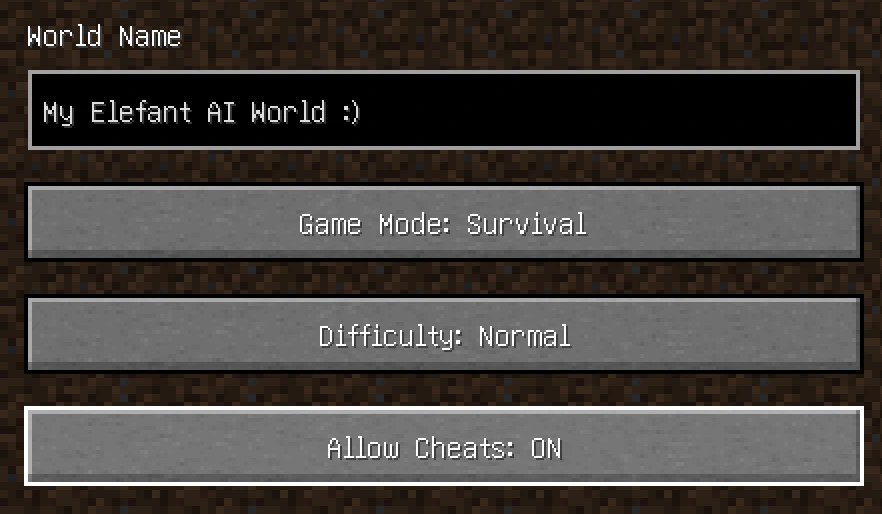
1. Enable cheats. When creating your Singleplayer server, find the `Allow Cheats: ON/OFF` toggle and set them to `ON`.
* Cheats are required for some actions the Bot takes, e.g. teleporting to you if you are in need!
* **Note:** If you have already made a world, skip this step. We'll describe an alternative way to enable cheats below.
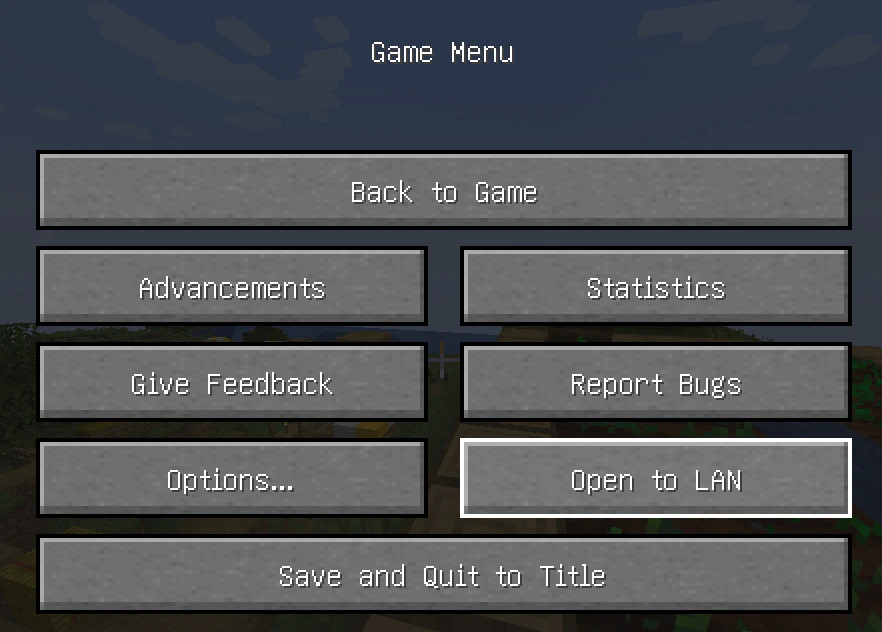
 2. Open to LAN. When in the server, press `Esc` to access the `Game Menu`. Click `Open to LAN`.
* Don't worry - nothing sus is happening here :) We just need a way to (safely) send the Bot to your server.
2. Open to LAN. When in the server, press `Esc` to access the `Game Menu`. Click `Open to LAN`.
* Don't worry - nothing sus is happening here :) We just need a way to (safely) send the Bot to your server.
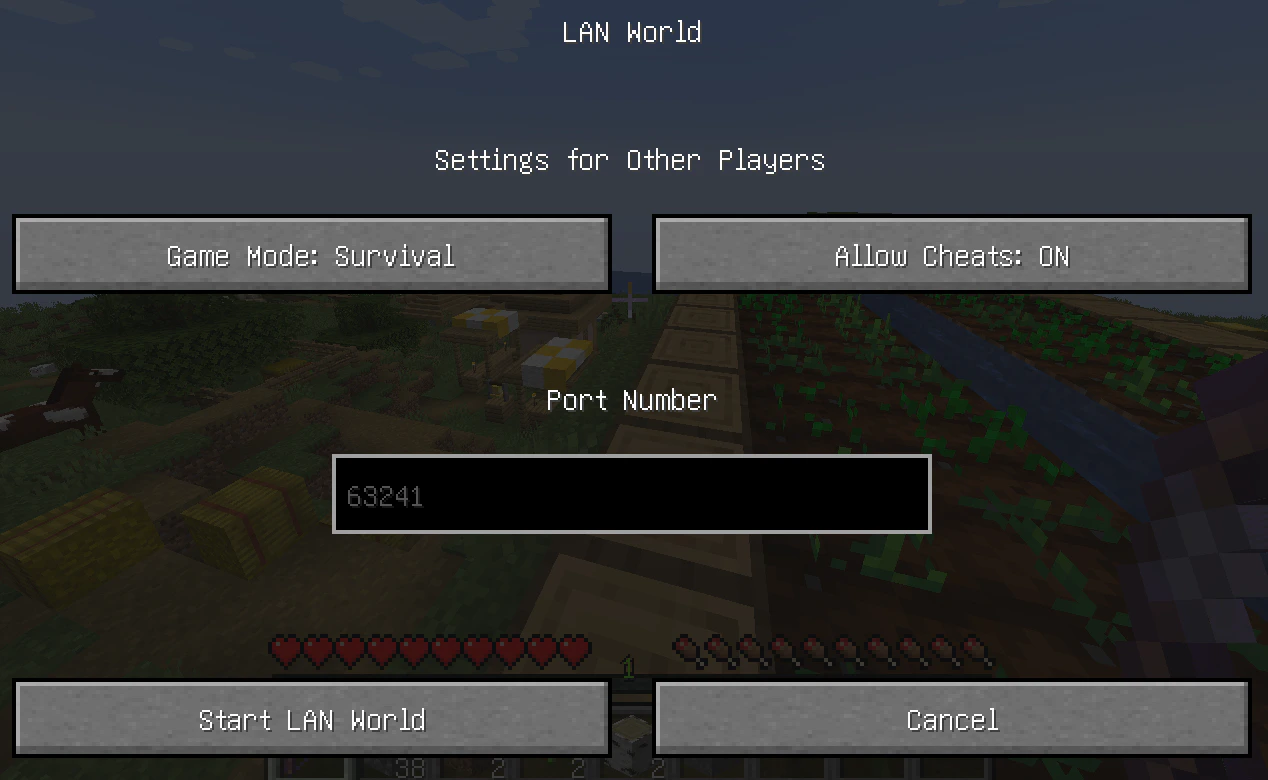
 3. Select port and start. Find the `Port Number` edit box and take note of the number - in this case, it is `63241`. Then click `Start LAN World`.
* **Hint:** now is the time to toggle `Allow Cheats: ON` if you couldn't do it in Step 1.
* Also, (if you know what you are doing) you can choose any port number in range `1024-65535`.
Any (free) port will work.
We advise using Minecraft's default port (the grayed-out one that is already there) because it will make sure to find a free one for you!
3. Select port and start. Find the `Port Number` edit box and take note of the number - in this case, it is `63241`. Then click `Start LAN World`.
* **Hint:** now is the time to toggle `Allow Cheats: ON` if you couldn't do it in Step 1.
* Also, (if you know what you are doing) you can choose any port number in range `1024-65535`.
Any (free) port will work.
We advise using Minecraft's default port (the grayed-out one that is already there) because it will make sure to find a free one for you!
 ### Client Setup
Perform these steps in the Elefant application:
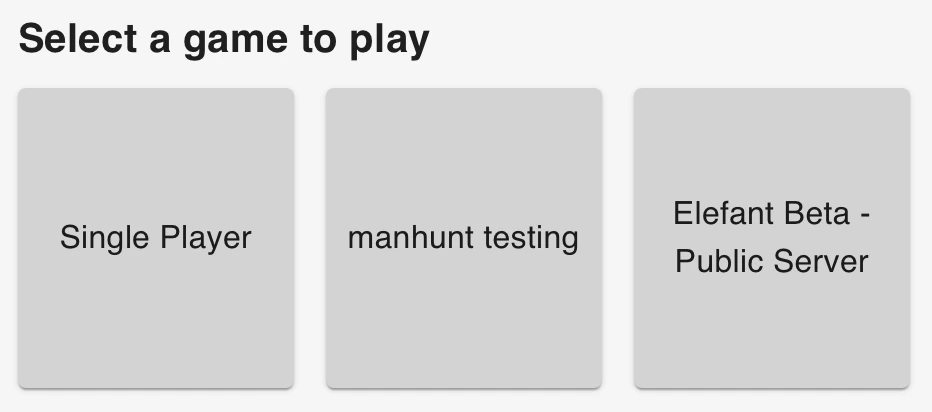
1. Select `Single Player` in the Home screen.
* Note, your other server options might differ from those shown in the image below, but ignore that.
### Client Setup
Perform these steps in the Elefant application:
1. Select `Single Player` in the Home screen.
* Note, your other server options might differ from those shown in the image below, but ignore that.
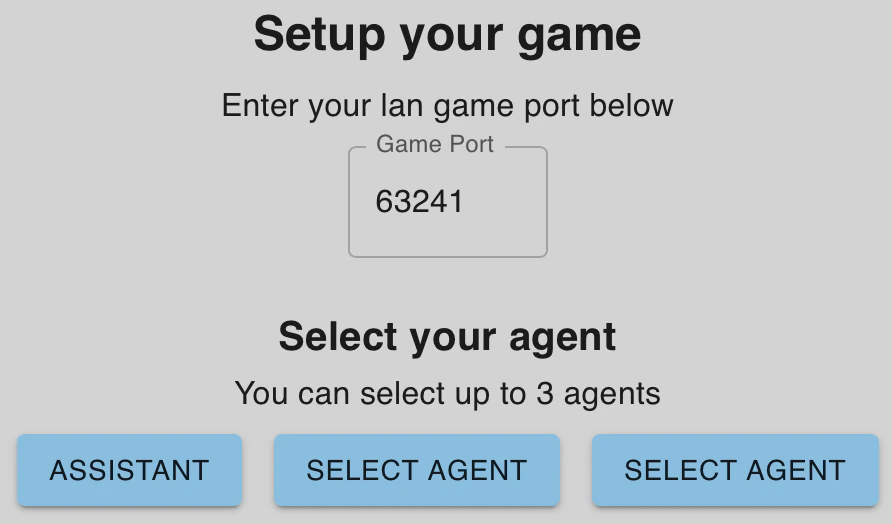
 2. Select port. Type the port you noted earlier - in this case, `63241` - and you're good to go!
* If you opened a different port in Step 3 of the Minecraft Server Setup, then enter that instead!
2. Select port. Type the port you noted earlier - in this case, `63241` - and you're good to go!
* If you opened a different port in Step 3 of the Minecraft Server Setup, then enter that instead!